![ideawake-logo-simple-no-padding-1.png]](https://academy.ideawake.com/hs-fs/hubfs/ideawake-logo-simple-no-padding-1.png?height=30&name=ideawake-logo-simple-no-padding-1.png)
This tutorial guides you through sending bulk invitations using Ideawake.
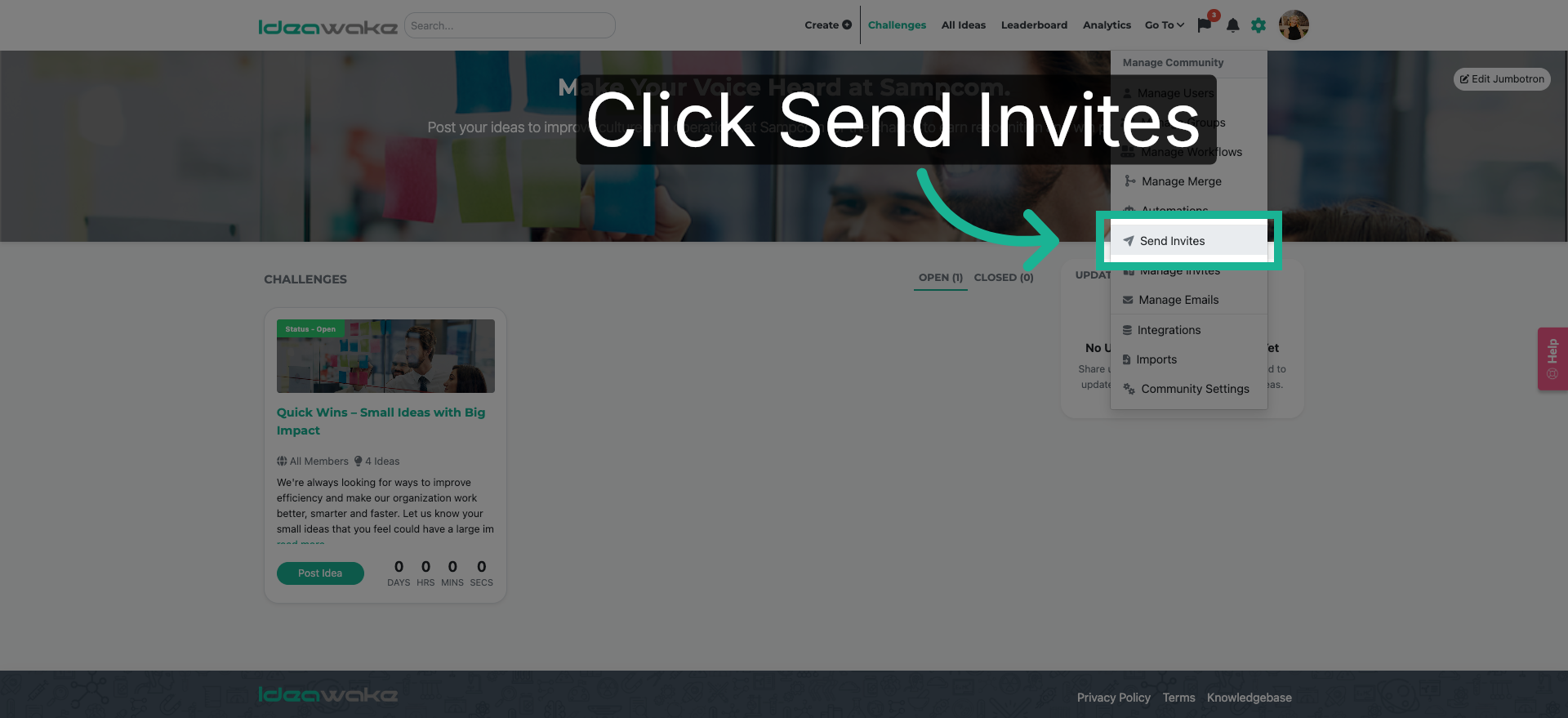
1. Access Send Invites Feature
Click on "Send Invites" on the drop-down menu.
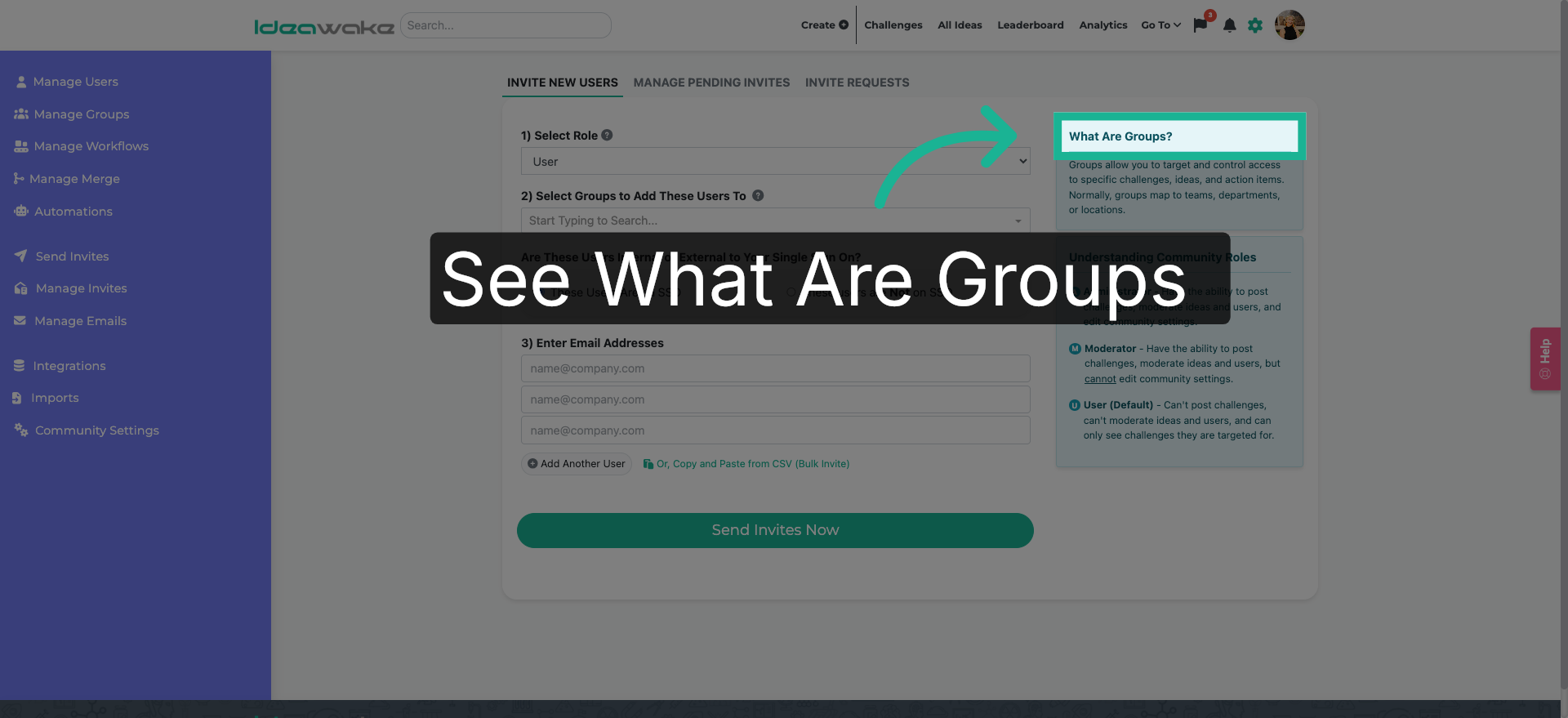
2. Learn About Groups
If you would like to add these users to a specific group - see here to understand how groups function in Ideawake.
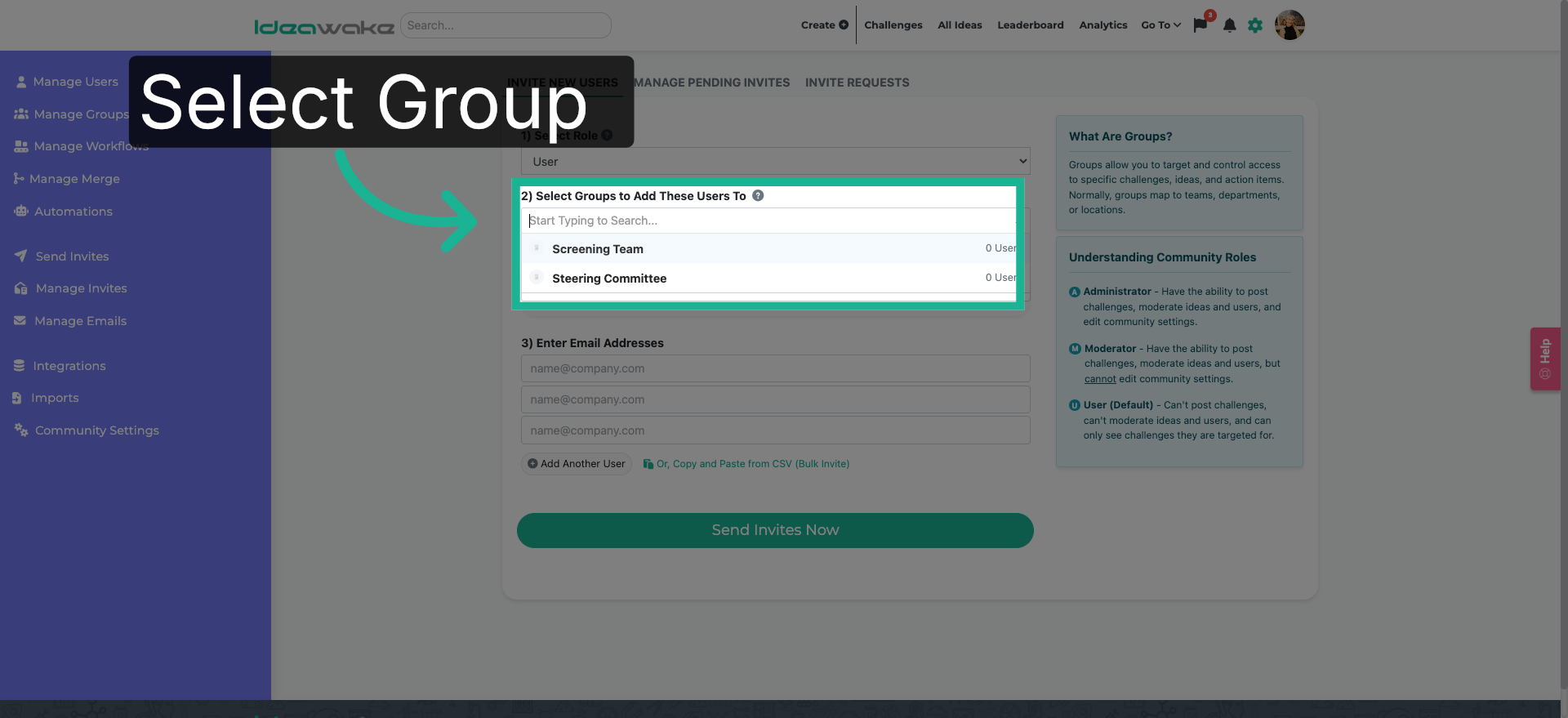
3. Navigate Further in Groups Section
Select the group you would like to add users to. You can skip this step if you are not adding them to a group or can do so at a later time.
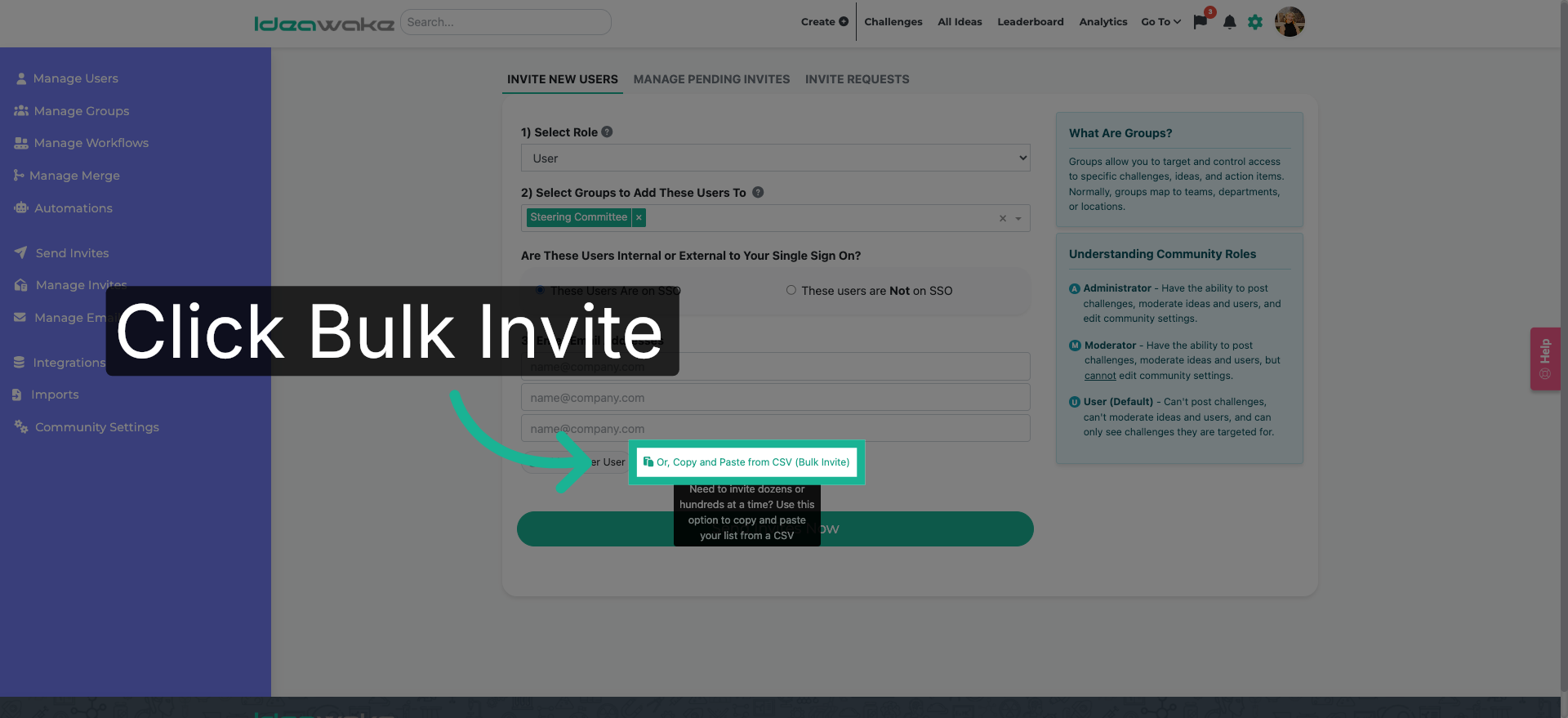
4. Choose Bulk Invite Option
Click the green "Copy and Paste from CSV (Bulk Invite)" link where you can paste multiple email addresses for importing.
5. Select Existing Email
A text field will appear.
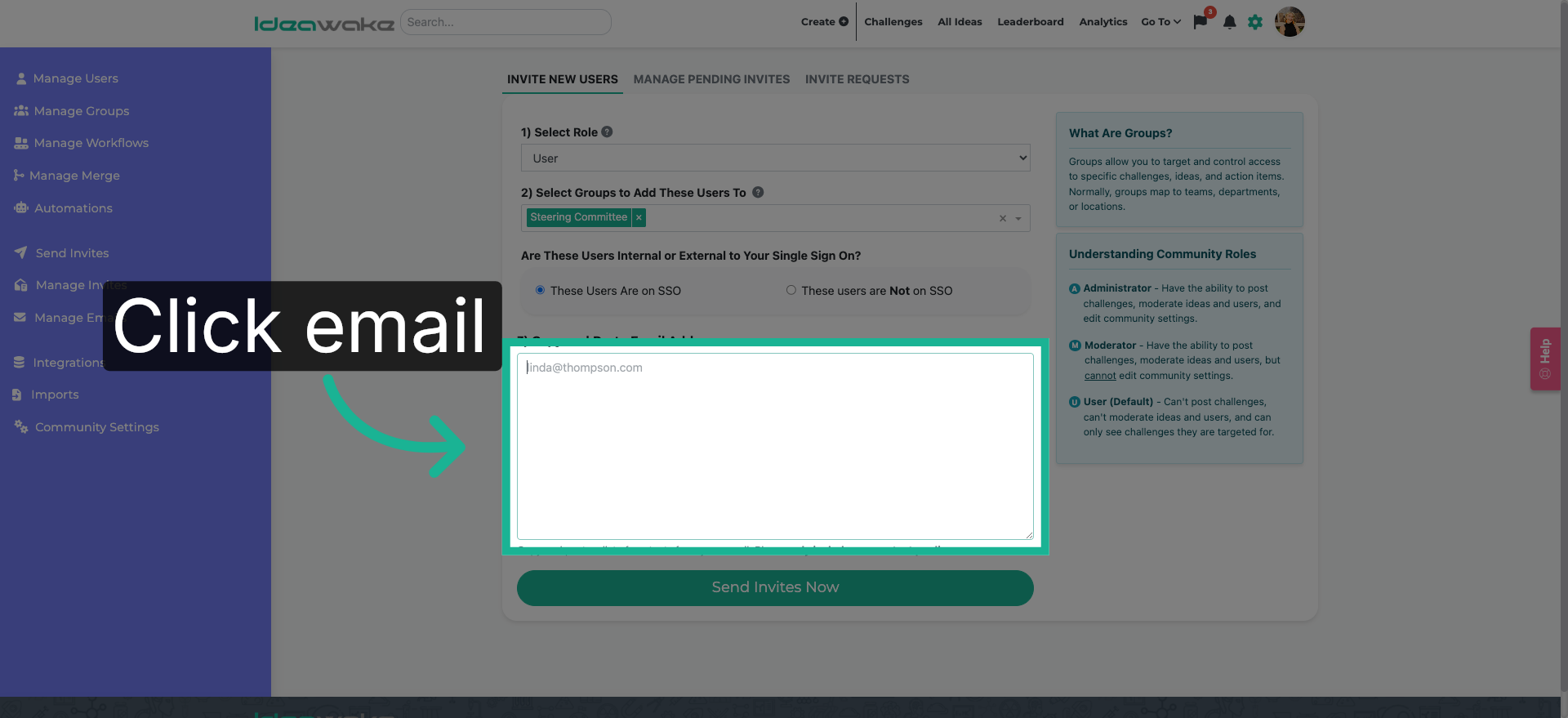
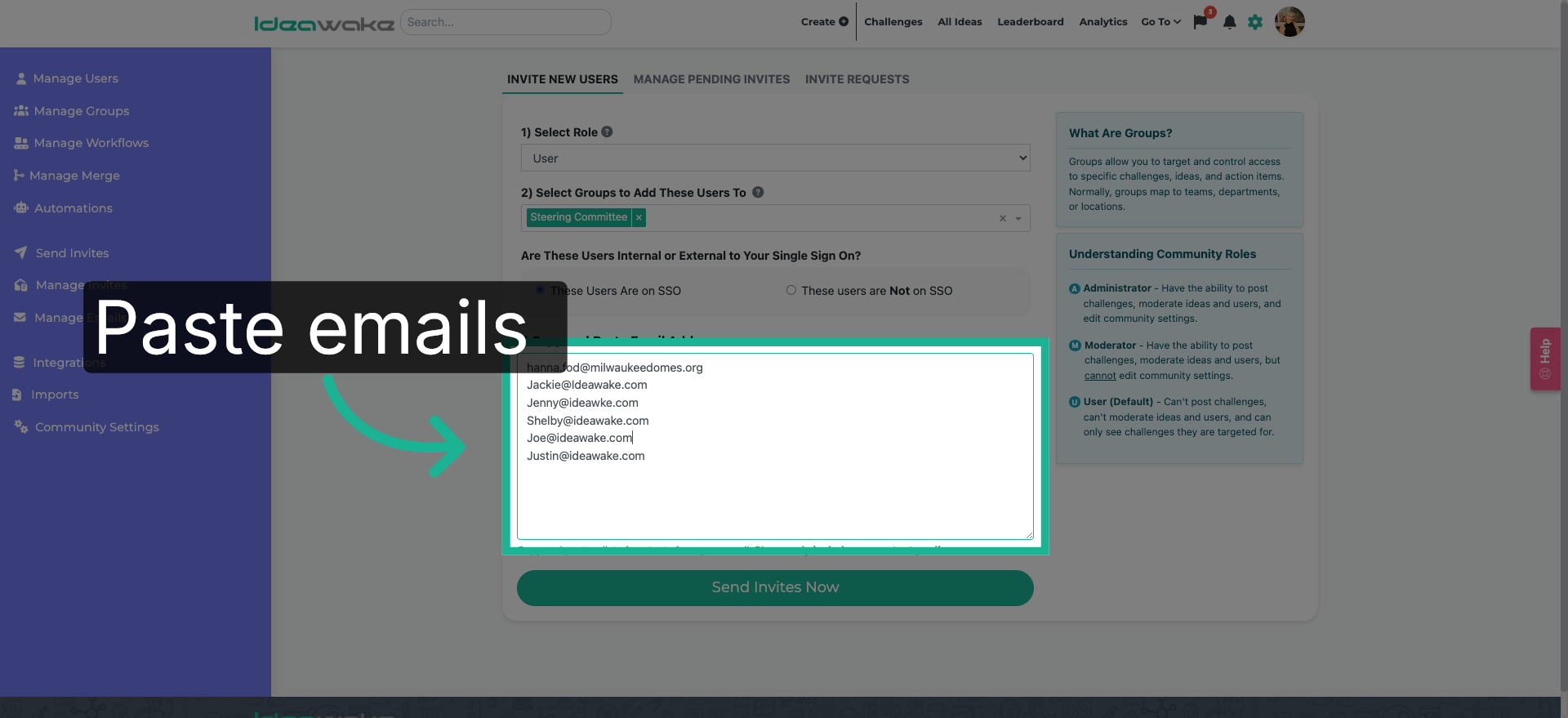
6. Paste Multiple Emails
Paste the list of email addresses you'd like to invite.
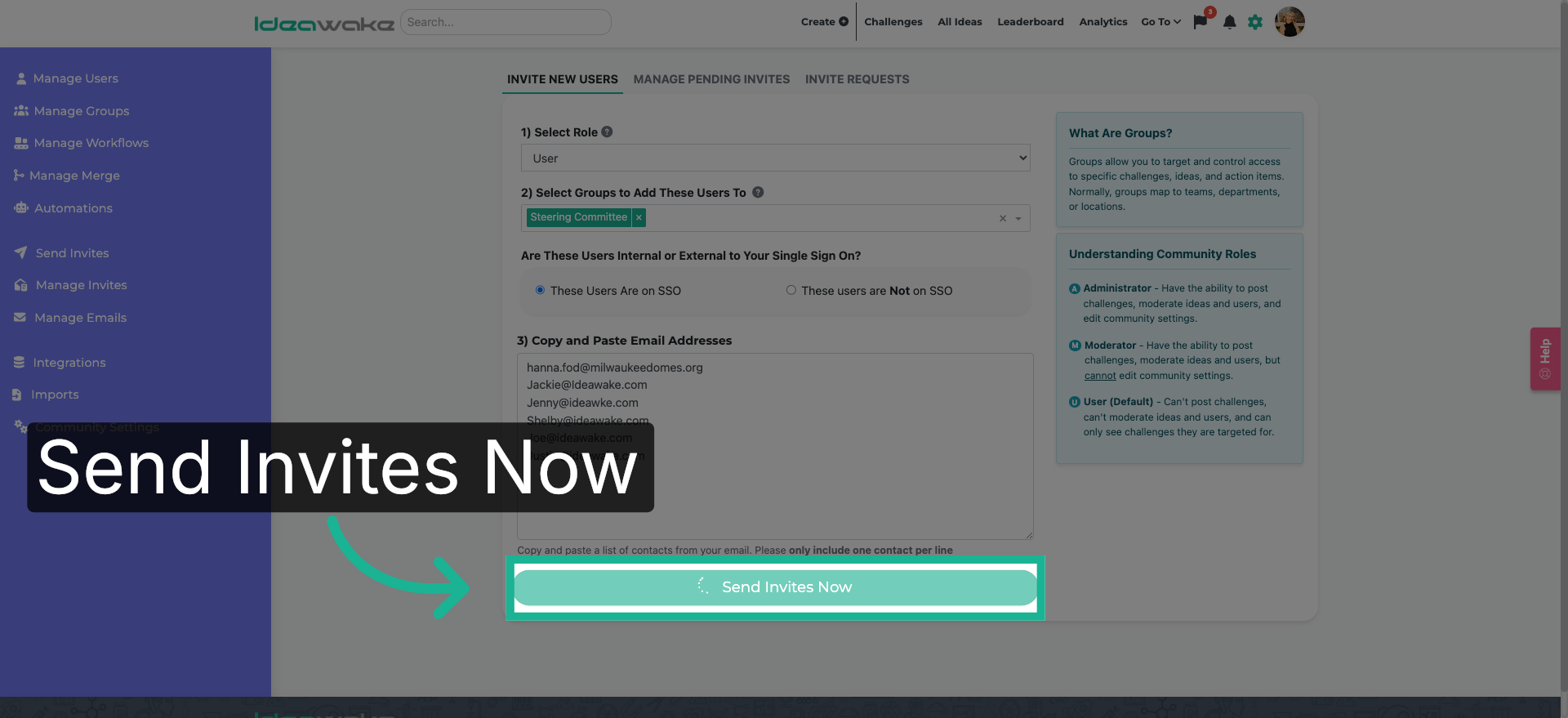
7. Send Invitations Now
Click on the "Send Invites Now" button to dispatch all the prepared invitations immediately.
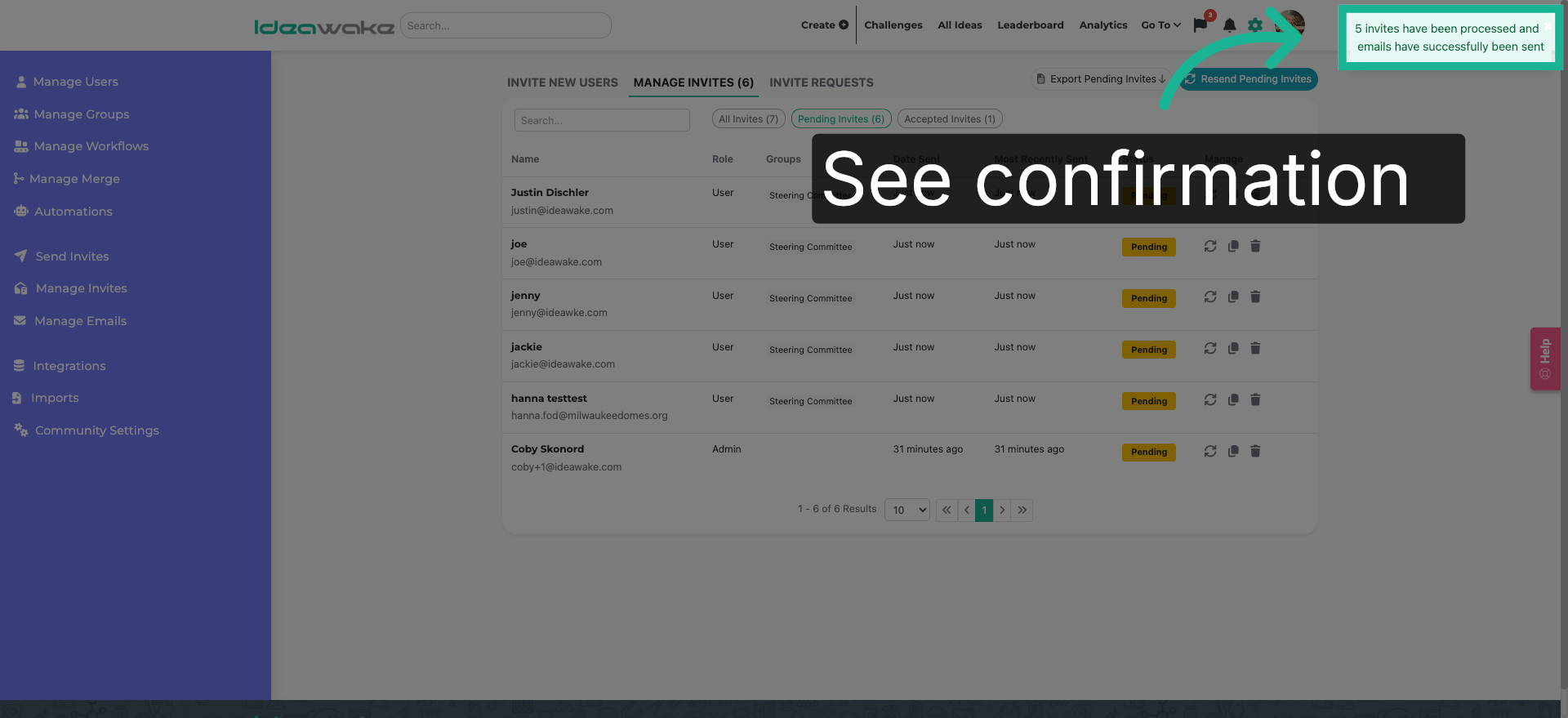
8. Confirm Invitation Sent
See the confirmation message stating invites have been processed and emails have successfully been sent to acknowledge successful sending.
You have successfully sent group invitations using Ideawake .