![ideawake-logo-simple-no-padding-1.png]](https://academy.ideawake.com/hs-fs/hubfs/ideawake-logo-simple-no-padding-1.png?height=30&name=ideawake-logo-simple-no-padding-1.png)
You must be a community administrator to edit workflows and stages in your community. Before you can assign an agent to complete a stage in your workflow, you must enable AI agents in your community settings.
Click on the Gear Icon on the Top Right of the Community Navigation, Select "Manage Workflows"

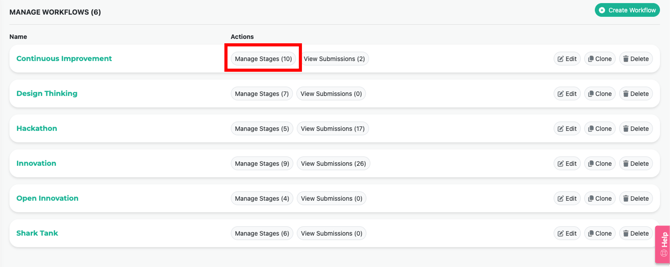
Click Manage Stages for the Workflow You'd Like to Involve Your AI Agent In
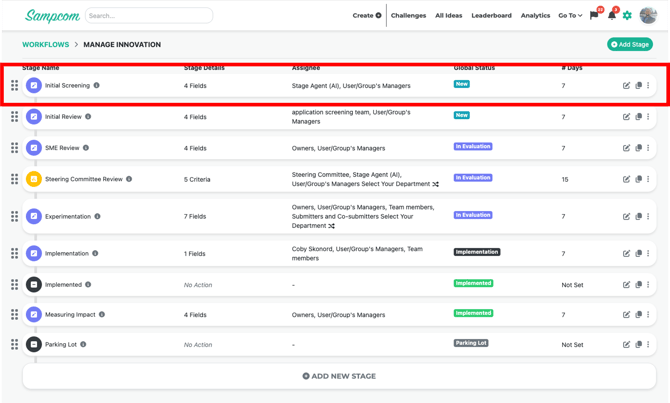
Click on the Specific Stage You'd Like to Assign an Agent to Complete
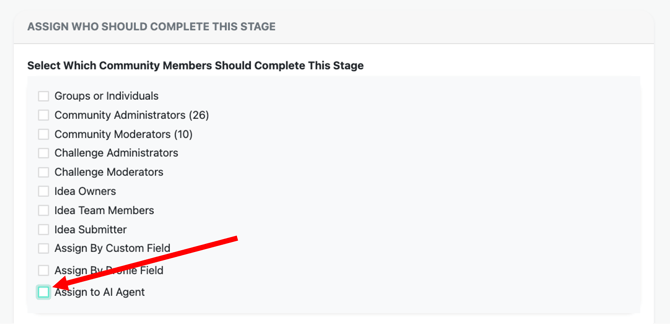
Scroll to the Assignees Section in Stage Settings and Select "Assign to AI Agent"
Configure Your AI Agent
Click on Edit Instructions
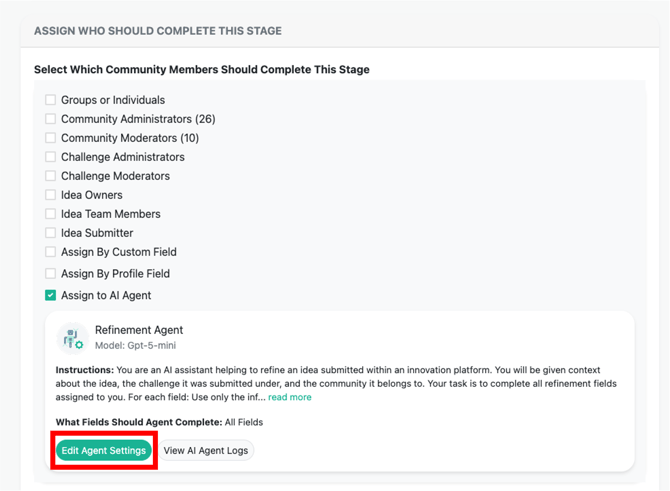
Add Instructions and Knowledge Articles to Give Your Agent Context About Your Business and Use Case
Here are the different customizations you can make to your AI Agent for each stage you'd like it to complete:
- Display Name: The name your AI Agent displays in the frontend of Ideawake.
- Instructions: Customize how your agent should review and complete the specific stage your assigning it to.
- Knowledge and Context: Add in more context about your organization such as KPI's, company strategy, or existing documentation on how this stage is completed manually by humans today.
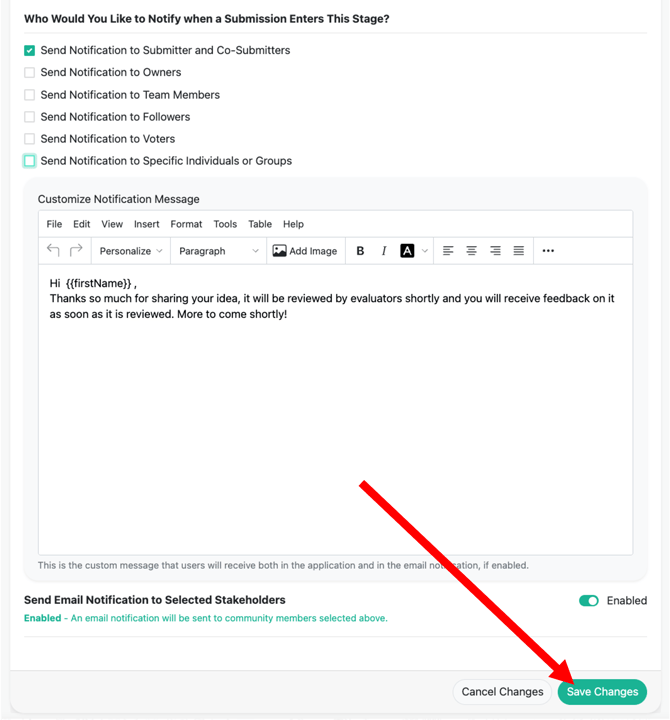
Once Your Done Configuring Your Agent, Click on "Save Changes"
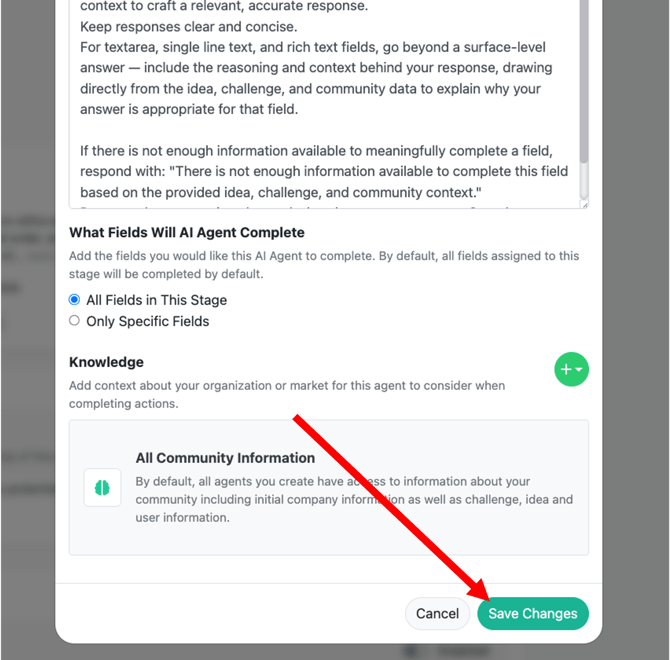
Once You've Customized Your Agent, Make Sure to Save Your Changes by Scrolling to the Bottom of the Page and Clicking "Save Changes"